
Do you clearly indicate outdated Figma design files?
When a Figma file falls out of sync with the product, new team members (or clients) can quickly build the wrong mental model of how the app works today. A fast visual cue that indicates the mock-up is stale saves hours of rework and prompts people to validate the real experience in production.
Spot outdated designs fast
When a Figma design is no longer the source of truth, make it unmistakably clear:
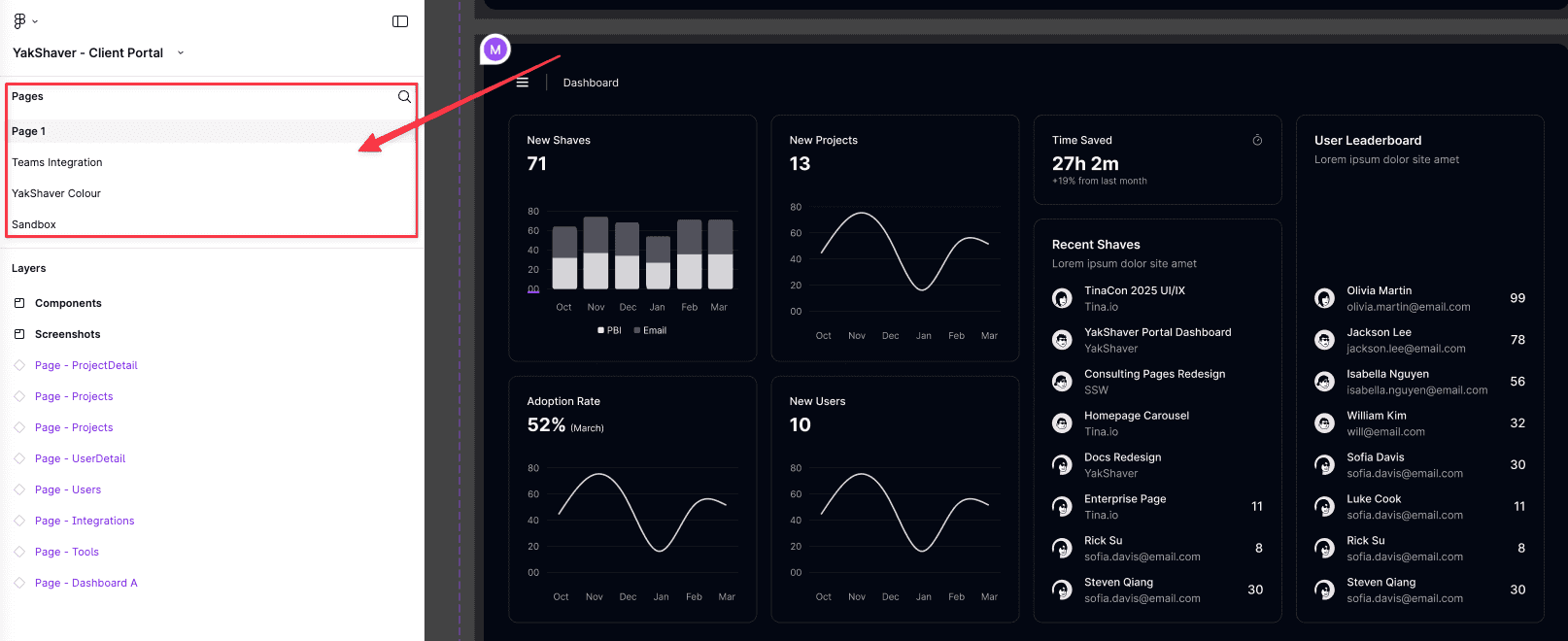
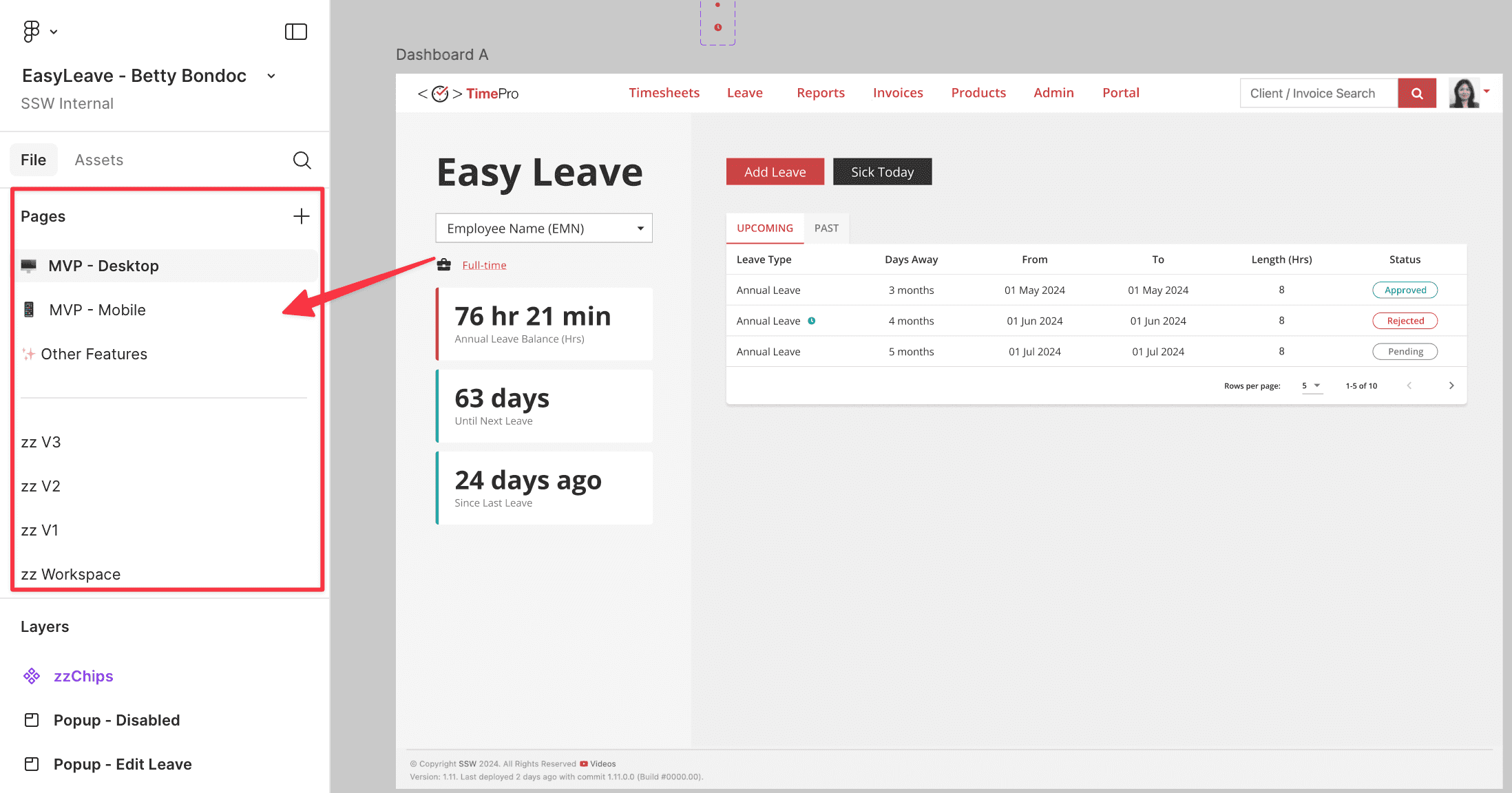
- Move outdated work to an Archive section – Add a divider or use a clear naming pattern (e.g. a
zzprefix) so old pages naturally sink to the bottom and stay separate from live work. From this point on your developers can carry on using the design system you developed to ensure consistent designs and up to date documentation without being blocked by a designer. See our rule about having a design system. - Add a locked status banner – Drop a top-of-frame callout (e.g. a red ⚠️ warning or a “Deprecated” badge) that says: “Out of date — refer to production {{ LINK }}”. Lock it so it can’t be hidden
- Link to the production source – Always include the real live version so there’s no confusion about where the truth lives
- Document who maintains it – Add a small note like “Maintainers: {{ DESIGNER }}” so everyone knows who to @mention for updates, even on free plans
These simple cues make outdated designs obvious, prevent accidental reuse, and clearly point the team to the current production experience.


